Add a signature to emails in Outlook for Mac
Desired Outcome
- Add an email signature within Outlook for Mac
- Change default signature settings for emails in Outlook
Step-by-Step Guide
You can create personalized signatures for your email messages that include text, images, your electronic business card, a logo, or even an image of your handwritten signature. You can set it up so that signatures can be added automatically to all outgoing messages, or you can choose which messages include a signature.
Mac
- Open the Outlook app
- In the menu bar, click Outlook > Preferences

- Click Signatures

- Click Edit on the left column
- Create or paste in your email signature
- Click Done when complete.
- If you require an alternate signature, click the + button on the left column and create another addition signature.
Windows
- In Outlook, click New Email button
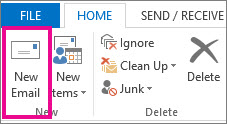
- Click Signatures on top bar on the right side
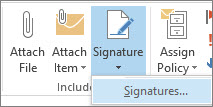
- Click Signatures...
-
Click New or select signature to edit
- Create or paste in your email signature
- Click OK when complete.
- If you require an alternate signature, click New button on the left column and create another addition signature.
For an instruction video on how to add an email signature within Outlook, view it here.